The first five modules are about using AI well. This one is the toolkit that does it beside the chat: 18 tools, each with what it does, when to reach for it and one tip.
Before you send.
The tools that shape a prompt while you write it.
The interview
Type a rough request and a card beside the chat asks the few things the model needs, one at a time, setup first. It never asks what you already said, and each answer says what it will change. Build then writes the full prompt into your message box.
Use it for
Anything longer than a quick question: a plan, a piece of writing, a comparison, a decision.
Tip
Press Preview at any point to see the prompt so far. Skip moves past a question you do not care about.
Review
Your prompt laid out part by part, coloured by who wrote each part: you, Alide, or something you added. Alide's read says what the AI will make of it, and Make it better offers the fixes that would change the answer.
Use it for
Before a prompt that matters, and any time you want to learn why a prompt works.
Tip
Add this puts a fix straight into the prompt. Ask asks Alide any question about it.
Prompt Strength
The bar at the top of the rail scores your draft as you type on five parts: task, format, scope, audience and specificity. Each chip lights when that part is there.
Use it for
A glance before you send, to see what is missing.
Tip
An unlit chip is the cheapest fix in the prompt. Add one line for it.
Skills and personas
A skill is a sentence that tells the model how to do a kind of task well, like a spreadsheet or a deck. A persona tells it who to be. When one fits, the interview asks which sounds best, with the recommended one first.
Use it for
When the answer needs a format or an expert point of view.
Tip
Settings has a page for each, where you can star favourites, switch some off and write your own.
After the reply.
What to do once the model has answered.
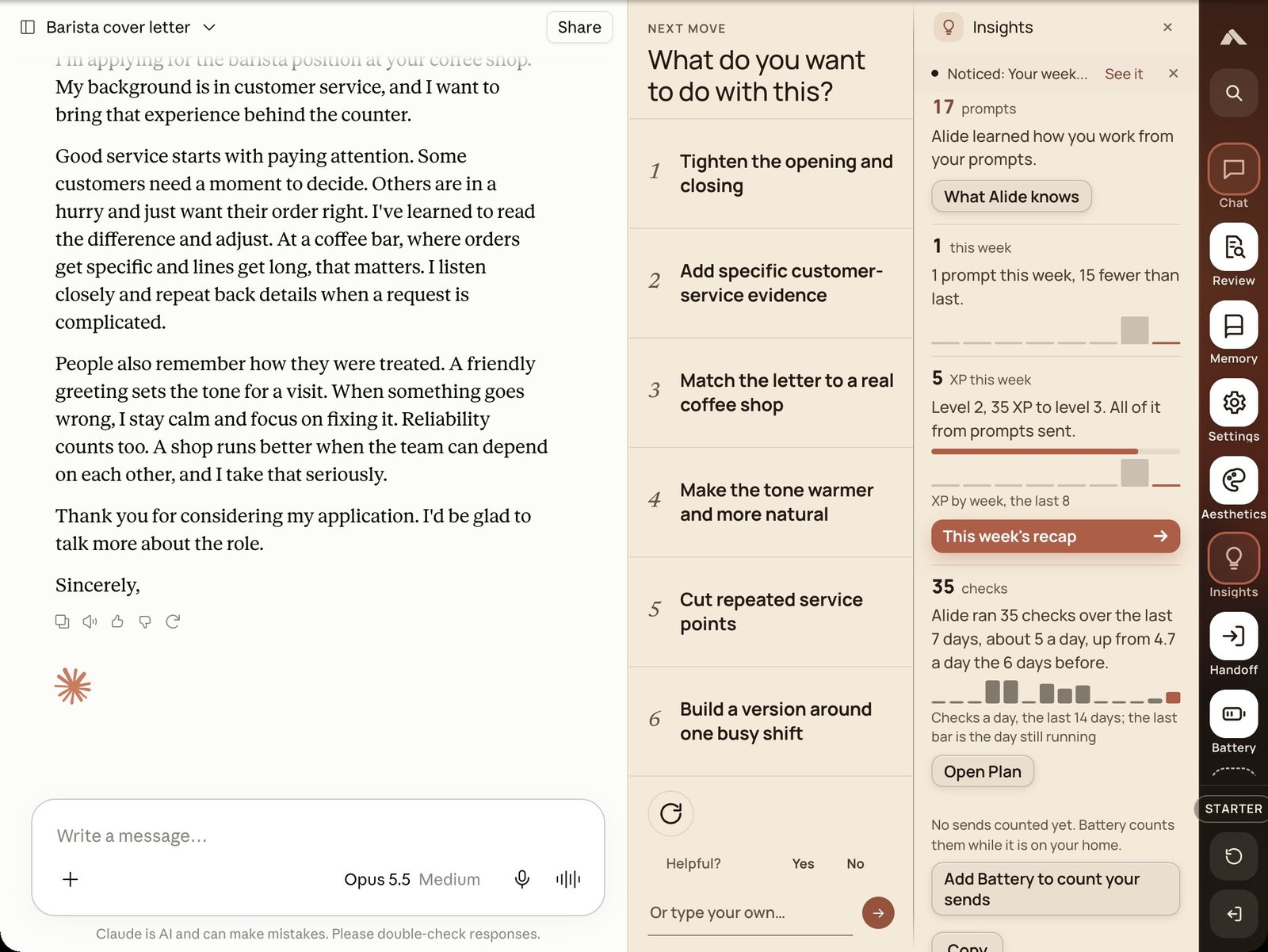
Next moves
When a reply lands, the rail offers the directions worth taking next, written for that reply. One press sends it. When the answer needs today's facts, the first move asks the model to search the web.
Use it for
Whenever the first answer is close but not quite right.
Tip
Settings, Interview sets how many moves you see and whether a press sends at once.
How it went
Review keeps the prompts Build wrote and you sent, with what you typed beside what went. It checks the reply against what you asked for and explains what changed and why.
Use it for
After a reply, to see whether the prompt did its job.
Tip
Open Review, then Sent. It lists the prompts sent in this chat.
Ask about a reply
Highlight any words in a reply and ask about just those: explain, simplify, give the steps, or your own question. The quote goes with it, so the model knows exactly what you mean.
Use it for
When one sentence of a long answer is the part you need to understand.
Tip
Short selections work best. A phrase or a sentence beats a whole paragraph.
Handoff
Long chats get slow and forgetful. Handoff writes up where this chat stands from its Smart memory and carries it into a fresh chat, so the model starts clean without losing the thread.
Use it for
When replies start ignoring things you said earlier, or the chat feels heavy.
Tip
Check the write-up before you send it. You can edit it in the message box.
What it keeps.
Memory that stays on your device, and what it learns from.
Insights
Your numbers in sentences: how often you prompt, how your prompts score, your level, and a weekly recap with one thing worth trying next.
Use it for
Once a week, to see whether your prompting is getting better.
Tip
The recap has one suggestion. Try only that one for a week.
Smart memory
Four tabs. This chat holds bookmarks you can jump back to. Memory holds what Alide has noticed about how you work, used only after you say Yes. Prompts keeps prompts that worked as templates, with your names and numbers blanked. Notes holds notes for each chat.
Use it for
When you keep giving the same background, or want a prompt again next week.
Tip
Memory is encrypted on this device. Every line there has Forget.
About you
A short paragraph about you and your work. Alide adds the lines of it that fit a prompt, and leaves the rest out.
Use it for
Once, so you stop retyping who you are and what you do.
Tip
Keep each fact on its own line. Alide judges each line on its own.
Learn
A short, checked fact about AI while the model is thinking, picked for what your prompts usually leave out. This course is where those facts come from.
Use it for
The few seconds you would otherwise spend watching a spinner.
Tip
Each fact comes from a lesson here, so you can read the whole idea.
Around the board.
The tools that run the rest of the screen.
Aesthetics
Backgrounds behind the chat, the accent colour and dark mode, which can switch itself at an hour you choose.
Use it for
When you want the tab to feel like yours.
Tip
Claude's own colours are one press away under Chat background.
Battery
How much of each site's usage limit you have left, and when it frees up, on Claude, ChatGPT and Gemini.
Use it for
Before a long task, so a limit never stops you in the middle.
Tip
A quiet note appears when you are running low.
Plan
Your Alide plan and what is left on it today and this month.
Use it for
When you want to know how many builds you have left.
Tip
Pro removes the limits. The pricing page has the details.
Play
A round of 2048, Daily word or Runner while a reply is written. It pauses the moment the reply lands.
Use it for
Long replies and slow models.
Tip
Open it bigger with the expand button, and size the window by its corner.
Settings
Every switch in one place: About you, Language, Prompt style, the interview, the board, the sites Alide runs on, Suggestions, your plan and privacy. Search finds any setting and points you to it.
Use it for
When something does not behave the way you want.
Tip
Settings, Suggestions sets how often Alide speaks up: Quiet, Balanced or Chatty.
The rail and More
The column of buttons at the edge of the board. More lists every widget, and Edit rail chooses which ones sit on the rail.
Use it for
Setting up the board the first week.
Tip
Keep the four you use most on the rail. Everything else is one press away in More.